
Member operations basics
Most of your organisation's members won't need any assistance with their membership, but there are multiple options in the admin app to edit a members details if required.
In this article
📝 Member overview
On the members list page, click on a users membership code number to open their profile.
The tabs across the top of their profile access different information about the member.
- Details - their member number, email address, name, age, gender, date of birth, membership type
- Status - their current status and any emails or messages that have been sent to the user
- Postal Address
- Activation /Payment - options to activate or deactivate user, subscription info if applicable
- Invoices - only visible for members with subscription membership
-
Financial Transactions - payment type, date, fees (stripe, hivepass), GST etc
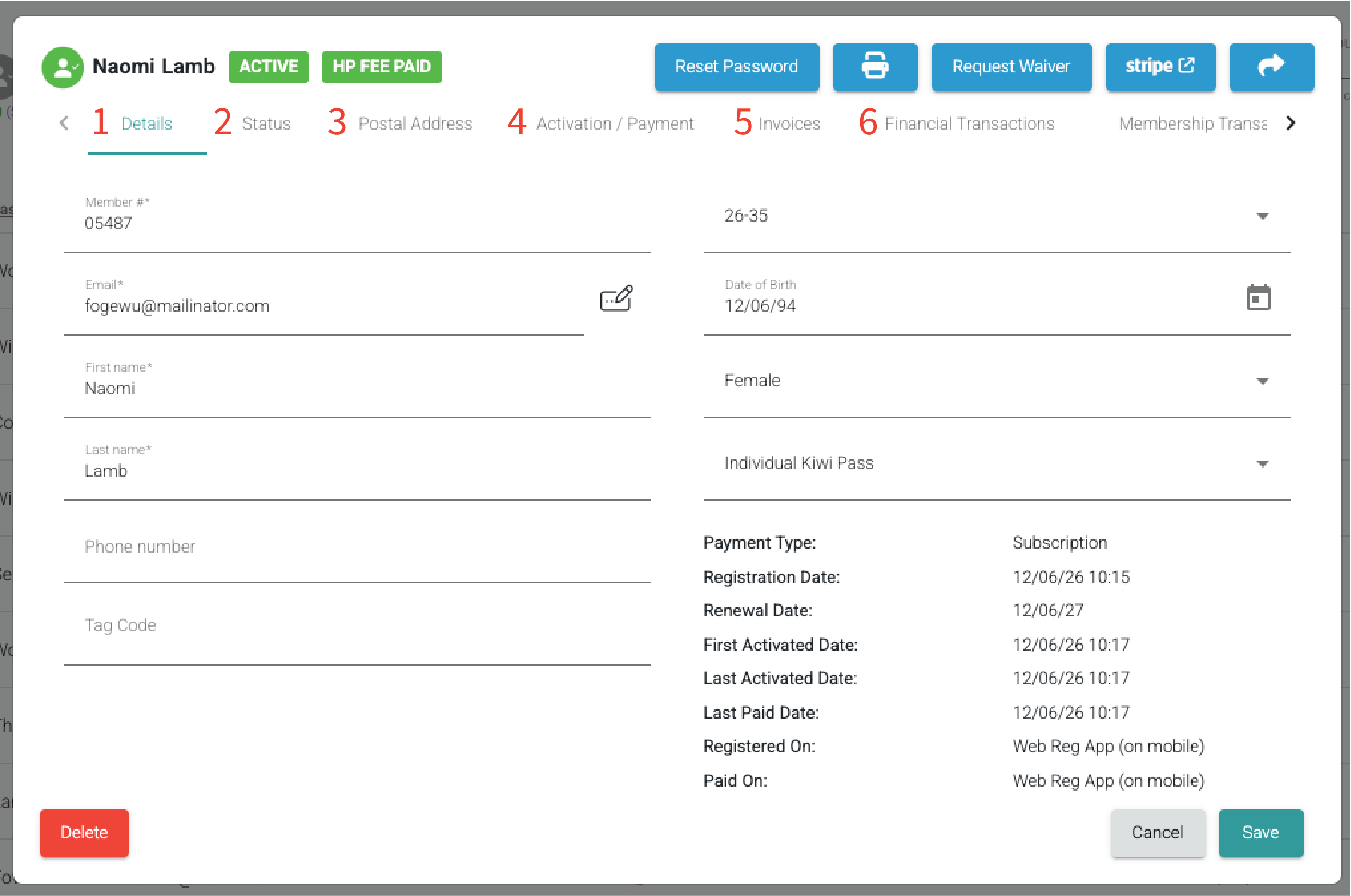
- Membership Transactions - date created, type, subscription, interval etc
- Waiver Transactions - waiver requests outstanding and waiver agreements
- Other Info - app version, device type and push note settings
🔥 Note: If the user is part of a family, a Family tab will be visible. See this article for comprehensive info on family editing in the admin app.
➡️ Basic functions
We've designed the member profile to be simple to use. Here are some of the more common functions:
❌ How to delete a member
Individual (Inactive)
- Inactive - open the users profile and select the red Delete button in the bottom left corner
- Confirm
- Yes! delete it! (the second confirmation pop up exists so that users aren't deleted accidentally)
Individual Subscription (Active)
- Open the users profile and select the red Delete button in the bottom left corner
- Click OK on the 'Member has an active subscription' pop up
- Navigate to the Activation /Payment tab
- Select 'Cancel subscription'
- Confirm
- This member can now be deleted following the steps under Inactive above.
Family
For detailed information on how to delete a family member, see this article.
📆 How to change a members expiry date
- Open the users profile
- On the left hand side under expiry date, click on the calendar icon and select the new date
- The new expiry date will show along with 'Expires at 12:59pm on [selected date]' underneath
- Save
- The expiry date on the members digital membership card in the app will update automatically.
☝️ Members with a subscription membership will not have an expiry date
🔑 Resetting a users password
If for some reason a user can't do a password reset or they are locked out of their account, you can reset their password in a few different ways - see this article for help.
📩 Resending a waiver to a user
If a user has a red waiver outstanding icon against their name on the members list page, you can resend the waiver to the email address they registered with.
- Open the members profile
- Navigate to the Waiver Transactions tab
- Outstanding waiver requests will be listed here with a red cross next to them
- Select Resend
- Confirm. A pop up will confirm when the waiver request has been sent.


🔄 View in Stripe
To see payment information for a user in Stripe:
- Open the users profile
- At the top of their profile window, click the blue Stripe button
- This will open your Stripe dashboard in a new tab
- Once logged in, the customer page will open and here you can see details about payment, amounts, history, subscriptions, customer ID etc.

💵 View in Stripe is only available for paid users. (Unpaid/inactive users are not yet created as a customer in Stripe, so the blue Stripe button will not appear under their profile.)