
Donations & donors
The donation page gives detailed insight into the who, what, where and when of donations your organisation is receiving.
In this article:
🎁 Overview
The Overview section at the top of the page can be filtered by Application and by Project
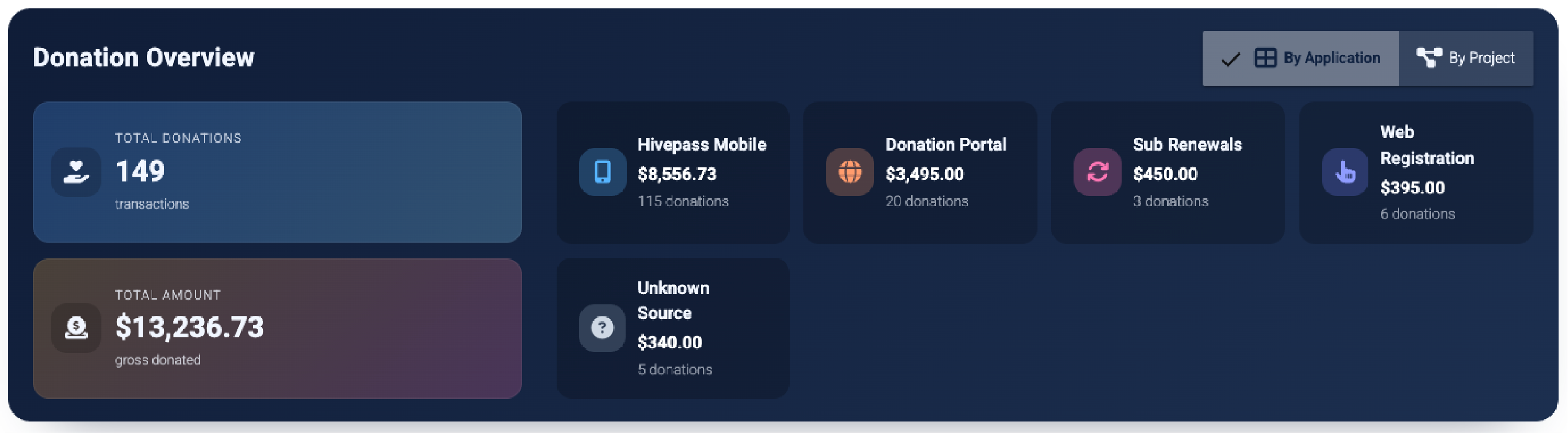
By application:
- Total donations - total number of donations made to your organisation in their Hivepass lifetime
- Total amount - total money amount of donations made to your organisation in their Hivepass lifetime
- Hivepass Mobile - this is when users donate directly via the side menu in the app
- Donation Portal - this is: https://donate.hivepass.app/yourorganisationcodehere. For example: A donation QR code or a link included in a newsletter will take a user to the donation portal.
- Sub Renewals - donations set up by a subscribing member (subs donations are yearly only, not monthly)
- Web Registration - If a member signs up using the web registration and makes a donation
- Unknown Source - This may be an older donation from before all data about donors was captured.
🪙 Create a donation QR in a few clicks Resources>QR Codes
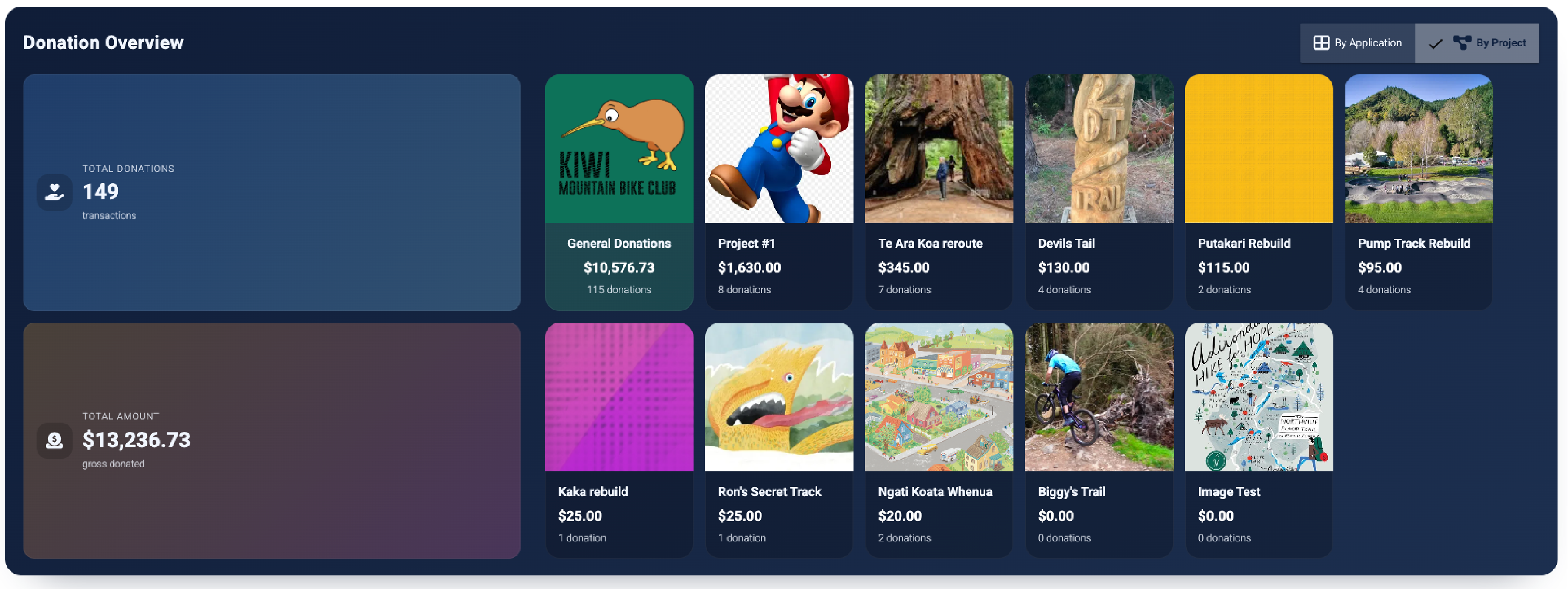
By project:
Each project is featured in it's own tile, including the image that was uploaded when the project was created, along with the total money amount donated and number of donations made.
💡 The amounts donated to projects can also be viewed under Resources>Projects
Learn more about projects here.
🔀 Filtering
The donations list can be filtered in a few ways:
- No filter - showing every donation that has been made to your organisation. Use the column headers to arrange by Amount and Date for some basic data control
- Amount - use the slider above the donation list to sort by increments of $10 from $1 – $100, by increments of $20 from $100 – $200 and by increments of $50 from $200 – $500
- Date Range - set a specific date range using the calendar. This can be particularly helpful for analysing the financial year or a particular period e.g: festive holidays or summer
- Email - see information about a specific donor.


📊 Summary view
The donations list can also be viewed in Summary view or Breakdown view
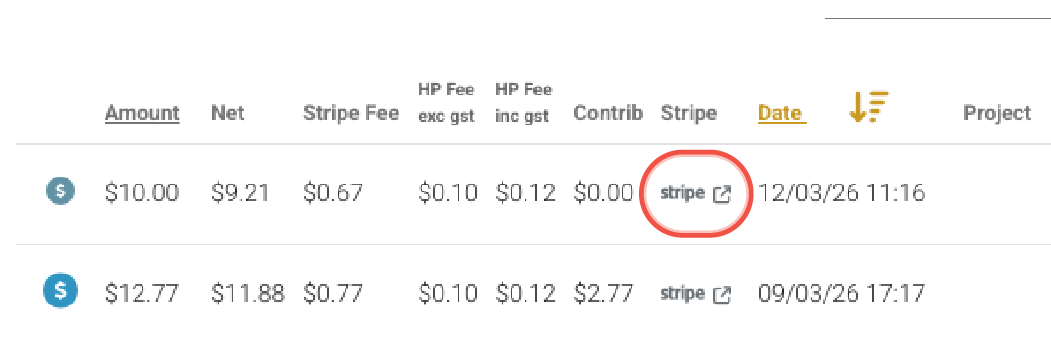
Summary view provides general information, Breakdown view shows more detailed financial information such as:
- Net amount
- Stripe fee
- Hivepass fee
- Whether the user chose to contribute to transaction fees


⭐️ Each donation transaction can be viewed in Stripe by clicking the Stripe dashboard link under Summary view
✅ Csv export
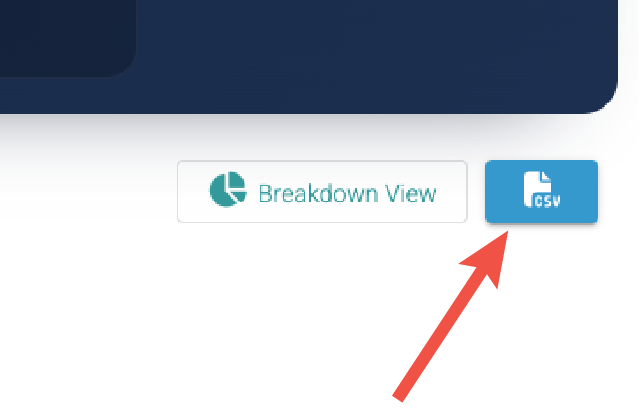
All donation data can be exported out to csv.
- Apply filters if desired
- Click the blue CSV button at the right hand side of the page under the Overview
- The download will start automatically
🙌 Donors – coming soon!
This page is currently under development.
Let us know what you want to see on that page at support@hivepass.app