
Signing up using a group or family code
This article provides a handy guide for users signing into the app using a family or group code they have been given.
In this article
👨👩👦👦 Family codes
The Primary family member creates the family membership;
Example: Molly Kiwi has signed up their family in Hivepass. They are the Primary family member.
Once they have paid for the membership, the family code is displayed in two places:
1: On their digital membership card
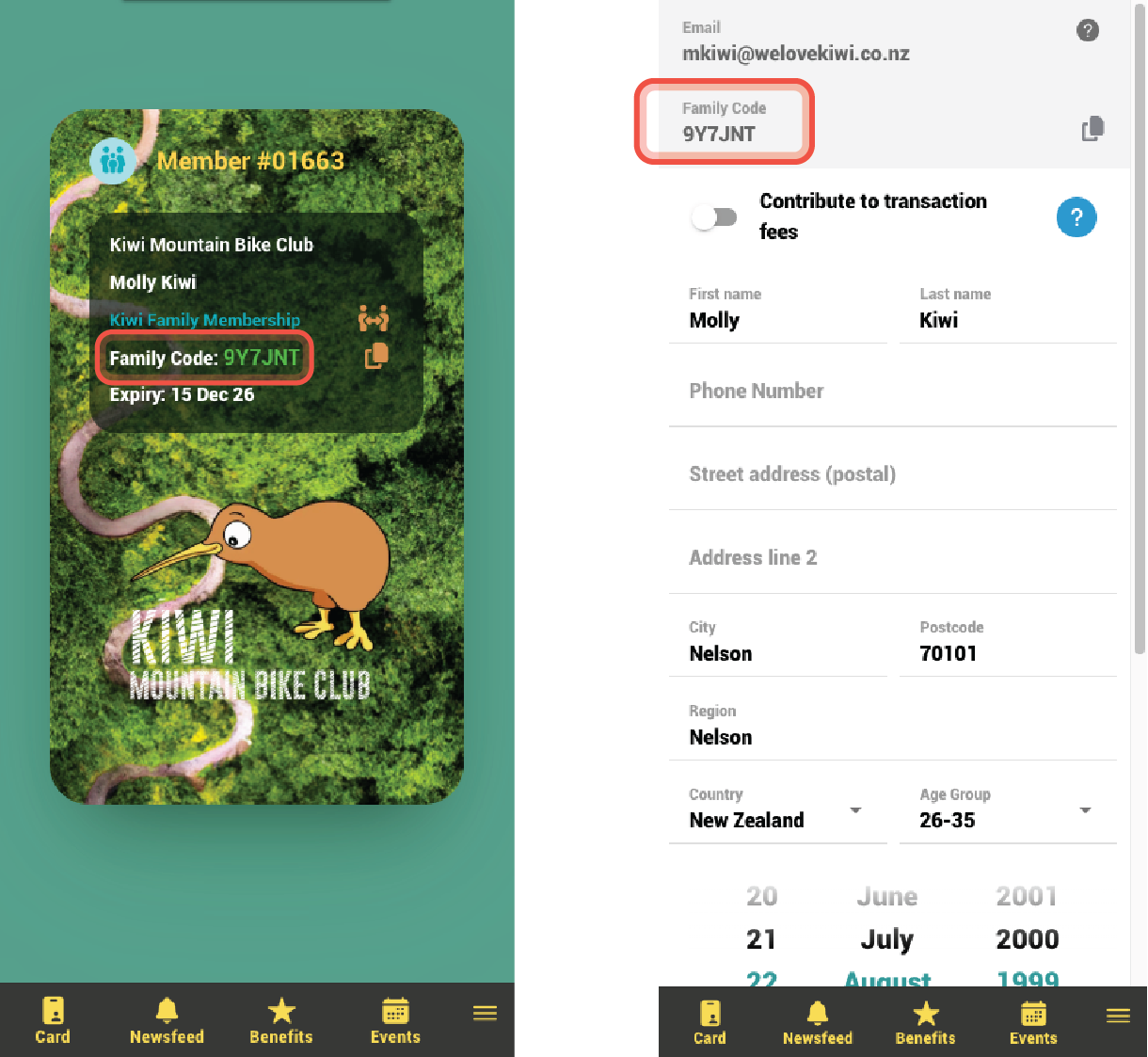
2: Under the users profile - Go to side menu > My Profile
They then give the family code 9Y7JNT to other users so that they can activate their membership in the app on their own device.
Secondary Family members
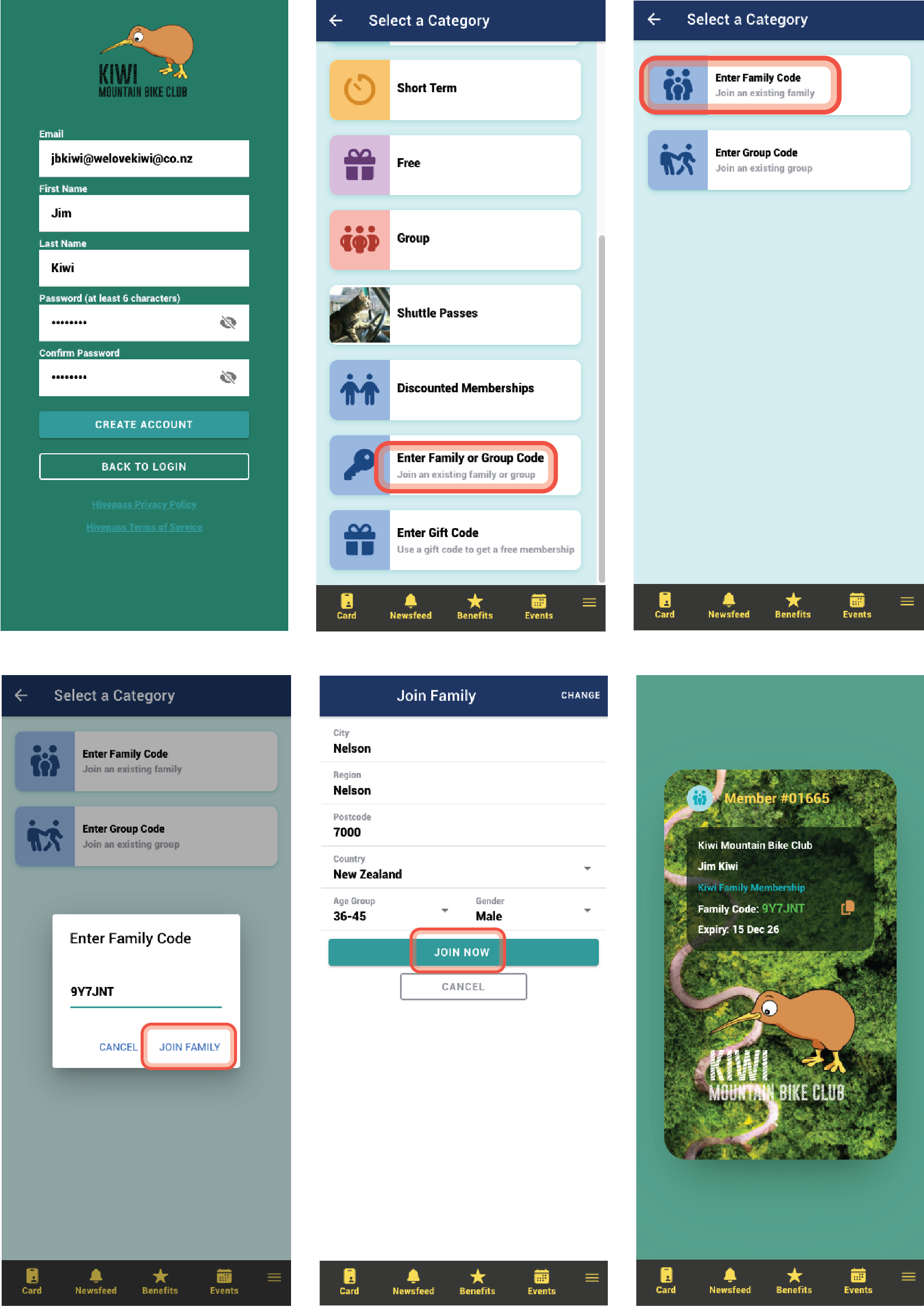
- Opens the Hivepass app and selects Create an account > selects the relevant organisation
- Enters email address, name, phone number if applicable and creates a password
- On the membership type page, select Enter Family or Group Code > Enter Family Code
- Enter the family code in the pop up box and select Join Family
- The code should be accepted and the user then needs to add their address etc
- Join Now. Their membership should activate immediately.
👥 Group codes
The Primary group member creates the group membership;
Example: Molly Kiwi has signed up their family in Hivepass. They are the Primary group member.
Once they have paid for the membership, the group code is displayed in two places:
1: On their digital membership card
2: Under the users profile - Go to side menu > My Profile
They then give the unique group code to other users so that they can activate their membership in the app on their own device.
Secondary group members
- Opens the Hivepass app and selects Create an account > selects the relevant organisation
- Enters email address, name, phone number if applicable and creates a password
- On the membership type page, select Enter Family or Group Code > Enter Group Code
- Enter the group code in the pop up box and select Join Group
- The code should be accepted and the user then needs to add their address etc
- Join Now. Their membership should activate immediately.
💡 Tips
Copy and paste the relevant parts of this article if required.
See this handy article for more details about how group memberships work and how to set them up