
How to integrate AusCycling and JustGo
JustGo Hivepass Integration
This guide explains how to configure AusCycling JustGo to send new and renewing member details to Hivepass.
Step 1: Copy the On Purchase email
The integration uses a copy of JustGo's On Purchase email to send membership details to Hivepass whenever a member joins or renews.
- Go to Email Management.
-
- Select Email Overview.
- Filter the email list by Membership.
-
- Locate the active On Purchase email.
-
- Select the Copy icon on the On Purchase email row.
-
- Change the email name to On Purchase Hivepass Integration.
- Enter importac@hivepass.app in the BCC field.
- Add the profile fields text shown at the bottom of the email body.
-
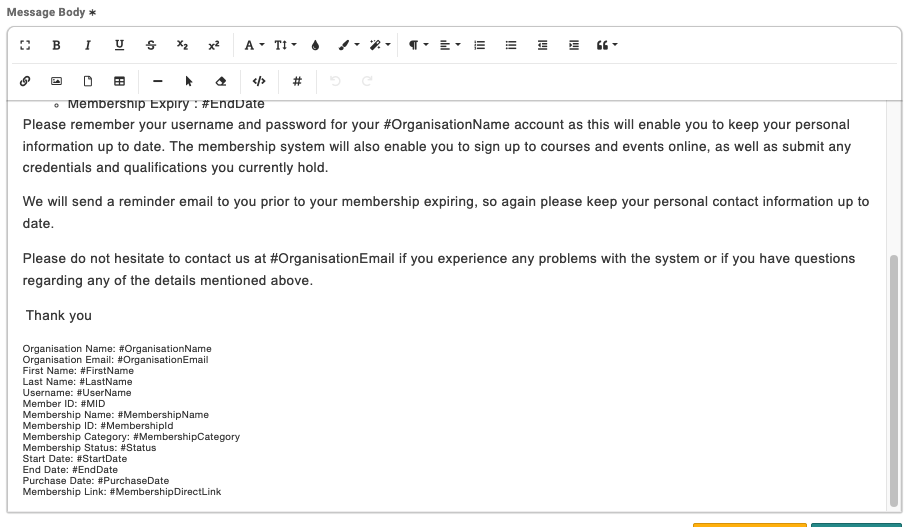
It should look like this
-
- Select Save.
- Filter the email list by Membership again if needed.
- Find On Purchase Hivepass Integration and switch its activation toggle on, if it is not already active.


> Important: Add the Hivepass address to the BCC field, not the CC field.
Profile fields text
Copy and paste the following text at the bottom of the email body:
Organisation Name: #OrganisationName
Organisation Email: #OrganisationEmail
First Name: #FirstName
Last Name: #LastName
Username: #UserName
Member ID: #MID
Membership Name: #MembershipName
Membership ID: #MembershipId
Membership Category: #MembershipCategory
Membership Status: #Status
Start Date: #StartDate
End Date: #EndDate
Purchase Date: #PurchaseDate
Membership Link: #MembershipDirectLink
Do not change the labels or merge-field names. Hivepass uses this exact structure to read the member and membership details.
This email will be sent to the member as well as Hivepass.
Step 2: Check the integration email
- Find On Purchase Hivepass Integration and click the edit / pencil icon.
-
- Confirm that:
- The email is named On Purchase Hivepass Integration.
- importac@hivepass.app is in the BCC field.
- All required profile fields appear at the bottom of the email body.
- The activation toggle for the integration email is on.
- Scroll to the bottom and click "Preview Email".
- Click "Send Test Email"
- Forward the email that you receive to support@hivepass.app so we can check it.

The next new membership or renewal will generate an email containing the member details required by Hivepass.