
Create and manage recurring events
Create and manage recurring events
Set up an event once and let Hivepass create future events on a regular schedule.
> Important: Changes to a recurring schedule or its template apply to events created after the change. Events that Hivepass has already created are not updated automatically.
In this article
- 🔄 How recurring events work
- 📋 Before you get started
- ➕ Create a recurring event
- ⚙️ Configure the schedule
- 🚀 Publish and view the events
- 🧭 Pause, end, or edit a schedule
- 💡 Common questions
🔄 How recurring events work
A recurring schedule creates ordinary Hivepass events. Each event can be viewed, edited, cancelled, or managed like a single event.
The first event is occurrence 1 and becomes the Schedule template. Future events copy the template's title, time, location, duration, details, and supported settings.
The schedule and the events have separate statuses:
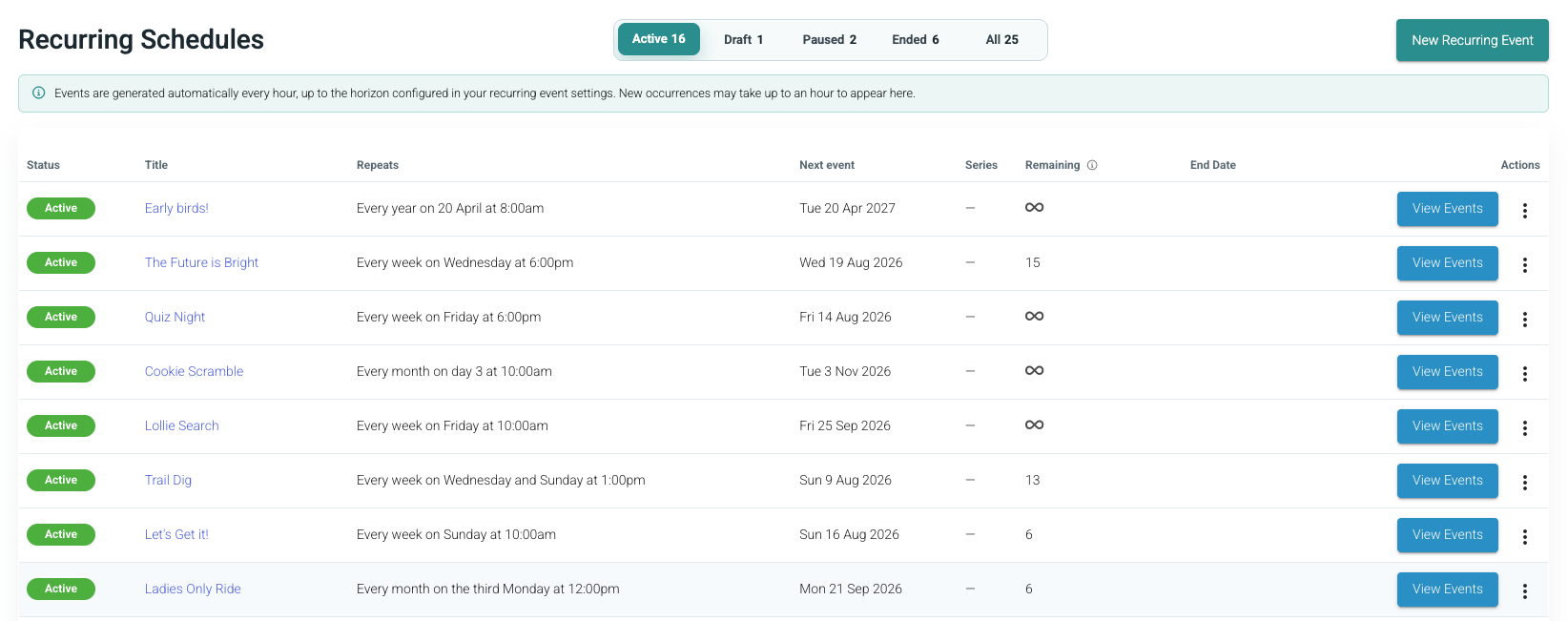
| Schedule status | What it means | | --- | --- | | Draft | The schedule exists but does not create future events. | | Active | Hivepass creates future events automatically. | | Paused | Existing events stay as they are, but no new events are created. | | Ended | No new events are created. Existing events stay as they are. |
You can find and manage schedules under Events > Recurring Schedules.
📋 Before you get started
Before starting, decide:
- how often the event should repeat;
- the first event's date, time, and timezone;
- whether the schedule should run indefinitely, end on a date, or stop after a set number of occurrences;
- whether any dates should be skipped; and
- how far ahead Hivepass should create events.
Complete the normal event details required for your event type before publishing.
➕ Create a recurring event
- Go to Events > Recurring Schedules.
- Select New Recurring Event, then select an available event type.
- On Basic Info, make sure Recurring Event is selected.
- Enter the event's required details, including its title, timezone, start date, and start time.
- Save the event. Hivepass creates a draft schedule and opens Recurring Schedule.
You can also create or open an unpublished event under Events, then select Recurring Event on Basic Info.
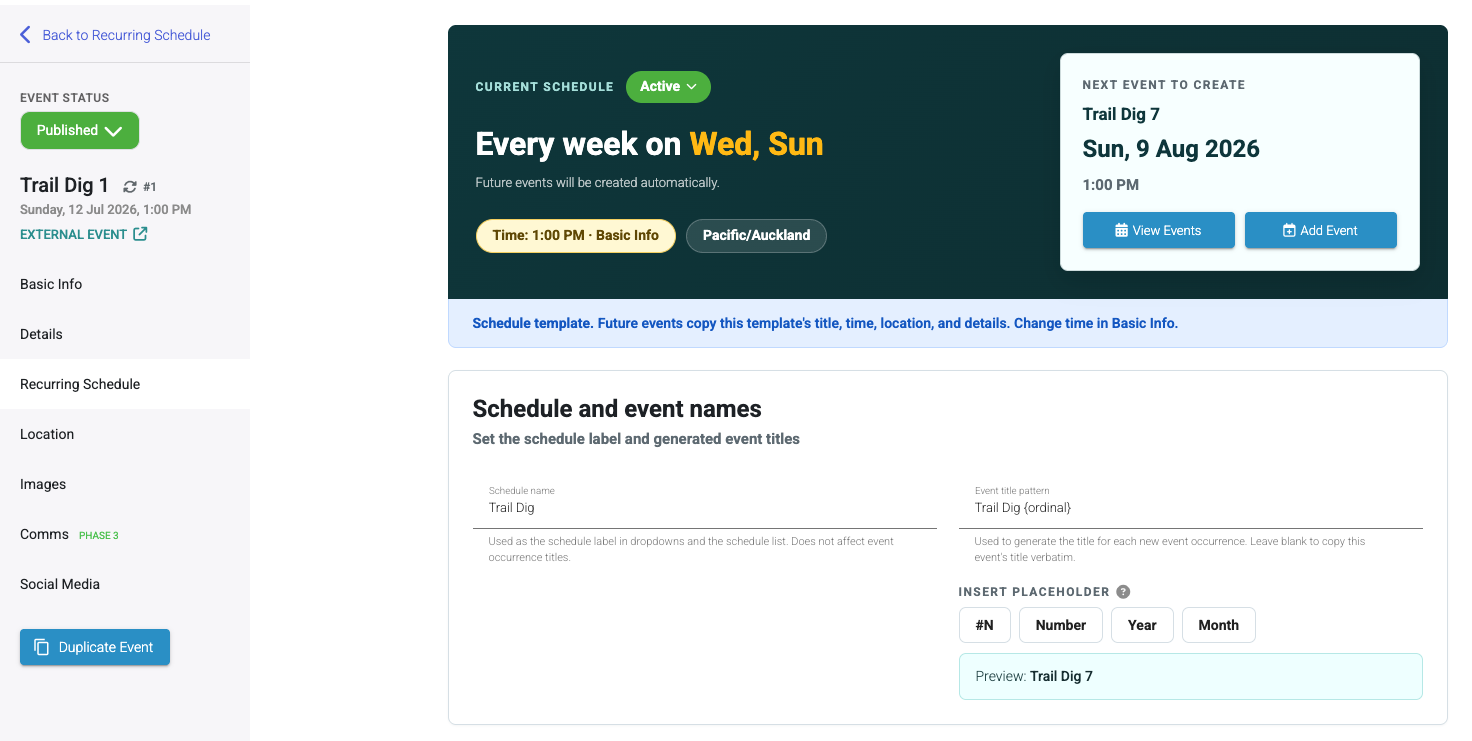
The top of Recurring Schedule shows the schedule status, repeat summary, timezone, and the next event Hivepass expects to create.
⚙️ Configure the schedule
Set the schedule and event names
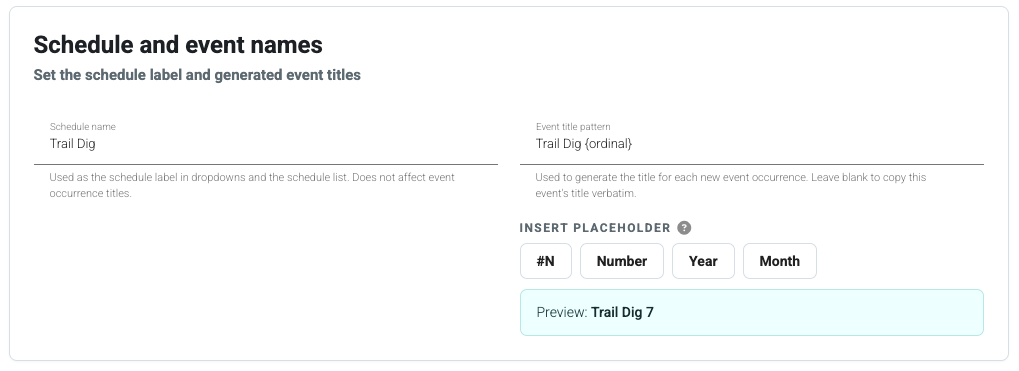
- Enter a Schedule name. This is the admin-facing label shown in schedule lists and dropdowns. It does not change event titles.
- If each event needs a different title, enter an Event title pattern.
- Use #N, Number, Year, or Month under Insert placeholder to add changing information to the title.
- Check the Preview.
For example, a schedule named “Thursday Night Ride” could use an event title pattern that creates “Thursday Night Ride #1”, “Thursday Night Ride #2”, and so on. Leave Event title pattern blank to copy the template event's title exactly.
Choose the frequency and interval
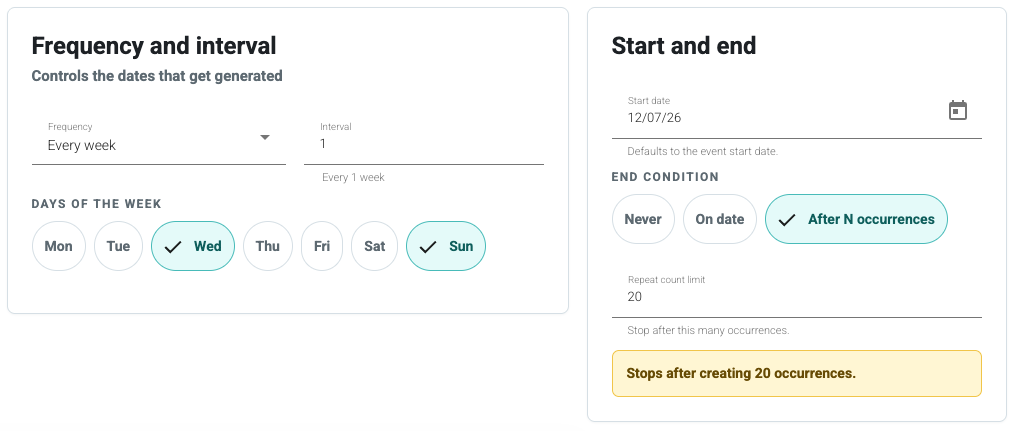
Under Frequency and interval, choose the repeat pattern and set Interval to 1 or greater.
- For Every week, select at least one day under Days of the week.
- For Every month, use On a day of the month or On the... to choose an occurrence and weekday, such as the third Saturday.
- For Every year, select the Month and Day.
An interval of 2 means every two weeks, months, or years, depending on the selected frequency.
Choose when the schedule starts and ends
- Confirm the Start date. It normally matches the template event's start date.
- Under End condition, select one option:
- Never for an open-ended schedule;
- On date to use Recurrence ends on; or
- After N occurrences to set a Repeat count limit.
The repeat count includes the initial template event. Dates skipped later do not use up the repeat count.
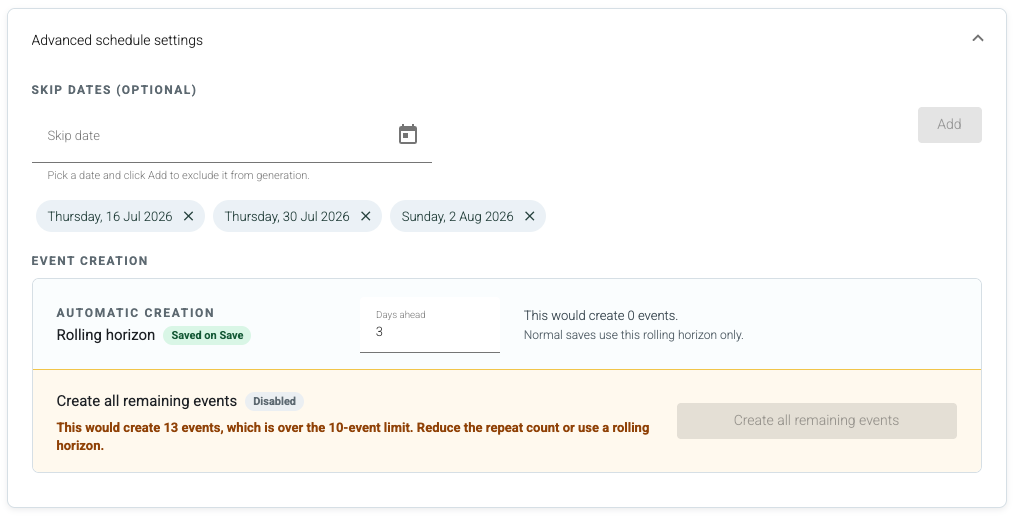
Add optional skip dates and a rolling horizon
Expand Advanced schedule settings if you need to control skipped dates or how far ahead events are created.
- Under Skip dates (optional), select a Skip date, then select Add. Hivepass will not create an event on that date.
- Under Event creation, set Days ahead for the Rolling horizon. This controls how far into the future Hivepass creates events during its automatic checks.
- Check the number of events the setting would create.
As time moves forward, the rolling horizon moves forward too, and Hivepass creates later events automatically. If a setting would create more than 10 events in one run, reduce the horizon or repeat count.
For an Active schedule with an end date or repeat count, Create all remaining events can create the remaining events immediately when no more than 10 remain. It is not available for open-ended schedules and does not change the rolling-horizon setting.
Save the schedule
- Check the repeat summary and Next event to create preview.
- Select Save.
- Confirm the change when prompted.
Remember that schedule and template changes affect newly created events only. Update any events that already exist separately if needed.
🚀 Publish and view the events
- Finish the template event's required details.
- Publish the template event. Its draft schedule starts automatically and becomes Active.
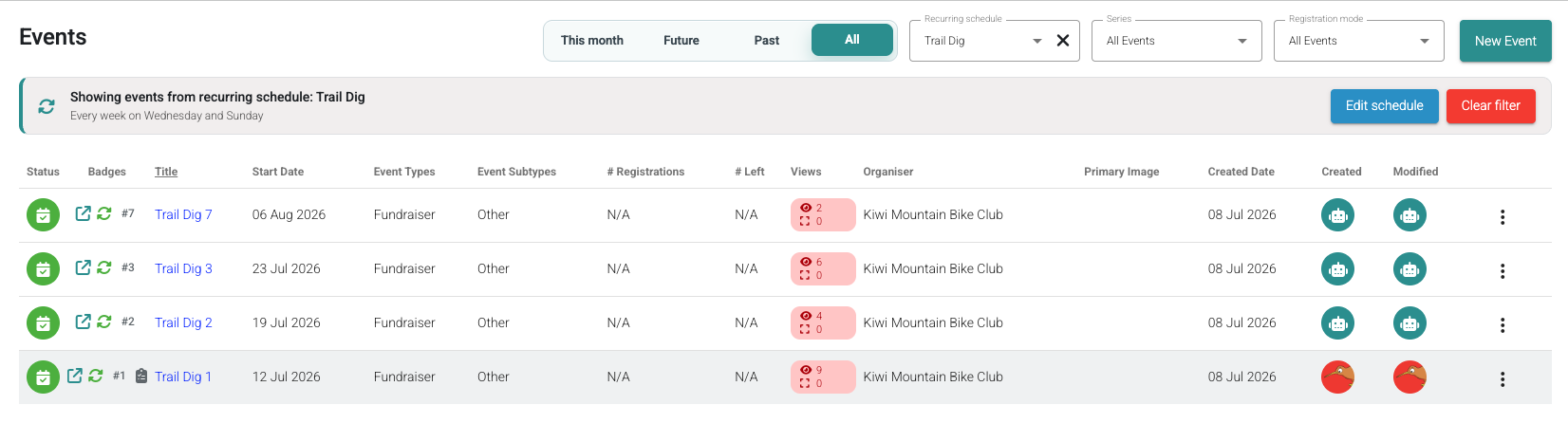
- Select View Events from the schedule or the Recurring Schedules page.
Active schedules are checked every hour. A new occurrence may take up to one hour to appear, and Hivepass only creates events within the rolling horizon.
🧭 Pause, end, or edit a schedule
Open the template event's Recurring Schedule section to manage future event creation.
- Select the Current schedule status, then Pause to stop creating events temporarily.
- Select End to stop future creation. An ended schedule can only be started again if its end date has not passed and its repeat count has not been reached.
- Select Start to start or restart an eligible published schedule.
- Change the schedule or template, then save. The change applies to events created afterwards.
- Select View Events to find the events the schedule has already created.
Pausing or ending a schedule does not delete, cancel, or change existing events. Cancelling one occurrence also does not pause the schedule; Hivepass adds that date to the schedule's skip list so the event is not recreated.
If you open a generated occurrence, go to its Recurring Schedule section and select Go to schedule template before changing the recurrence rules.
💡 Common questions
Why has the next event not appeared yet?
Check that the schedule is Active and that the date falls within the rolling horizon. Automatic creation runs every hour, so a new event may take up to one hour to appear.
Why can I not start the schedule?
Make sure the template event is published and the schedule is complete. Hivepass also blocks starting when the end date has passed or the repeat count has already been reached.
What happens when a monthly or yearly date does not exist?
Hivepass uses the last valid day of that month. For example, a monthly event set for the 31st moves to the last day in a shorter month, and a yearly event set for 29 February falls on 28 February in a non-leap year.
Are recurring schedules the same as event series?
No. A recurring schedule controls when Hivepass creates events. An event series is a separate feature.